Experienced system integrators know that a well-configured FieldServer gateway does more than translate protocols. It gives teams a clearer view of how connected systems are performing and where to look when something needs attention. In many projects, that visibility is what can make the difference between a smooth startup and a longer troubleshooting cycle.
From commissioning through ongoing system management, FieldServer gateways are designed to provide useful information at every stage of an integration. Knowing how to read that information, and how key configuration decisions shape the deployment, can make setup more efficient and diagnostics more direct.
That insight is something experienced integrators tend to recognize early. Successful deployments are not only about getting systems to communicate. They also depend on configuring the gateway in a way that supports clear discovery, practical visibility, and faster diagnosis when issues arise later.
The following overview looks at five practical areas system integrators may want to pay attention to. Each one points to a detail that can influence setup, discovery, visibility, and support in the field. Together, they show how FieldServer gateways help teams not only connect systems, but also better understand how those systems perform once they are connected.
Five Areas Worth a Closer Look
The questions that follow reflect a handful of technical details that can have an outsized effect on how smoothly a deployment goes and how quickly an issue can be diagnosed when something does need attention.
None of them are especially complicated on their own. What makes them important is that each one affects a part of the integration process that teams rely on every day, from startup and discovery to support and handoff.
- How QuickServer handles Electronic Data Sheet (EDS) file generation
- How BACnet network numbering works in ProtoNode and ProtoAir
- Where login credentials are stored
- How device status is reflected through BACnet
- How to get more from the ERR LED and diagnostic interface
1. How QuickServer Handles EDS File Generation
The question: Where can the correct EDS file for the FieldServer QuickServer Gateway be found when using EtherNet/IP?
The answer: QuickServer generates the EDS file automatically from the configuration installed on the device.
This is an important detail because it keeps the file aligned with the specific setup running on that unit. Rather than sending integrators to an external file library, the device produces the correct EDS file based on the active configuration. That means the file is tied directly to the live installation rather than to a generic download that may or may not reflect what has been configured on the unit in front of the team.
Why it matters:
When the file comes directly from the installed configuration, there’s less risk of working from something outdated, mismatched, or disconnected from the deployment. That can simplify both initial setup and later support. It also helps reduce one of the more common sources of confusion in the field, where a file may seem to be missing when the device is designed to generate it based on its current setup.
What to check next:
If the EDS file needs to be confirmed or retrieved, the first stop should be the device itself. Starting there helps keep the focus on the live configuration rather than an external file source. It also makes it easier to confirm that the file being used matches the setup that is currently installed.
2. How BACnet Network Numbering Works in ProtoNode and ProtoAir
The question: How should the BACnet network number be configured on a ProtoNode or ProtoAir?
The answer: ProtoNode and ProtoAir define their own BACnet network using the network number parameter. That number must be unique and separate from the Building Management System (BMS) network number.
This is one of those settings that can seem straightforward—until it creates a discovery issue. The device is not simply mirroring the BMS network number. It’s defining its role as a distinct BACnet entity within the broader BACnet network. Once that’s understood, the configuration becomes much easier to approach because the purpose of the network number is clearer from the start.
Why it matters:
A duplicated network number can quickly create confusion. Keeping the network structure clear from the start makes discovery more reliable while making later diagnostic work easier to manage. It also helps avoid a situation in which the configuration appears reasonable during setup but leads to unnecessary troubleshooting later because the numbering scheme did not reflect how the device is meant to behave on the network.
What to check next:
Before closing out BACnet setup, verify that the network number is unique and not duplicated elsewhere in the BACnet system.
3. Where Login Credentials Are Stored
The question: Where can the username and password for a FieldServer gateway be found?
The answer: The username is admin, and the 10-character password is printed on the device label.
Access is kept straightforward by putting the credentials directly on the unit. The label is the authoritative source, with no account setup or separate system to consult. That makes the initial access process simple, but it also points to a larger operational habit that can make a noticeable difference later.
The teams that benefit most from that approach are usually the ones that treat those credentials as part of the commissioning record from the start. Capturing the label information and including it in handoff documentation means the next person responsible for the system, whether that’s facilities staff, a service technician, or another integrator, can access the interface without delay.
Why it matters:
This is more than a simple access detail. It’s part of long-term maintainability. If the credentials aren’t documented early, routine support can become harder than it needs to be. A small step during commissioning can make a significant difference months or years later, when the original installer is no longer the one working on the system.
What to check next:
During commissioning, document the credentials from the device label and include them in the project handoff materials so future access is straightforward.
4. How Device Status Is Reflected Through BACnet
The question: Why would a BACnet FieldServer gateway show as non-operational in the BMS even when it’s discoverable?
The answer: The device reflects connected device status through BACnet. If the connected device is offline, the BACnet operational status will indicate that condition, giving the BMS a direct signal about what’s happening elsewhere in the integration.
This is one of the most useful diagnostic capabilities in the FieldServer gateway product line because it helps teams distinguish between visibility and health. A device may appear in the BMS and still be signaling that communication somewhere else in the system needs attention. That distinction is important because it changes how the issue should be read. Discovery confirms that the device is visible. It does not confirm that everything connected to it is functioning normally.
A non-operational status doesn’t automatically point to a problem with the FieldServer gateway itself. In many cases, it means the device is doing exactly what it should do: showing that a connected system isn’t communicating as expected. For teams working quickly in the field, that kind of visibility can prevent a great deal of wasted time. Instead of treating the BACnet side as the only place to investigate, the reported condition helps direct attention to the communication path or connected equipment that may be driving the status.
Why it matters:
That distinction can save time. If a device is visible but non-operational, the next step shouldn’t be guesswork on the BACnet side alone. The reported status needs to be read in context. Done well, that approach leads to more accurate diagnosis and fewer unnecessary changes to settings that were not causing the problem in the first place.
What to check next:
When this status appears, check the connected node status in the interface first. That usually gives a clearer picture of where attention is needed and whether the issue begins with a communication problem, a device that is offline, or another condition outside the BACnet view itself.
5. How to Get More from the ERR LED and Diagnostic Interface
The question: What does a solid ERR LED indicate on a FieldServer gateway?
The answer: A solid ERR LED indicates that the diagnostic interface has more information.
Connecting to the web GUI, opening the Diagnostic tab, and reviewing User Messages provides a clearer description of the condition and what to investigate next.
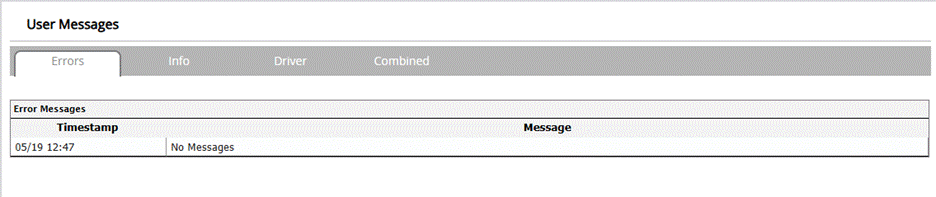
The ERR LED is the prompt. The interface is where the detail lives. Teams that make a habit of going straight to the diagnostic view usually get to a clearer answer faster and make better-informed decisions about next steps. That is part of what makes the diagnostic workflow useful. The visual indicator gets attention quickly, but the interface is what helps turn that signal into a more informed next move.
Why it matters:
An indicator light can tell a team that something needs attention, but it can’t explain the full condition on its own. The diagnostic interface is what turns a visible alert into useful information. In practice, that means fewer assumptions, fewer blind resets, and a better chance of identifying whether the issue points to configuration, communication, or device state.
What to check next:
Before assuming a hardware fault, review the User Messages in the Diagnostic tab to see whether the issue points to configuration, communication, or device status. That step helps keep diagnosis grounded in what the unit is reporting rather than in a guess based on the LED alone.
What These Five Questions Reveal
Together, these five questions point to something important about how FieldServer gateways support integration work. They don’t just help systems communicate. They also help teams understand what those systems are doing.
That is where much of the practical value lies. Clear configuration, accessible credentials, visible status conditions, and readable diagnostics all contribute to a deployment that is easier to manage long after initial startup is complete.
- The EDS file is generated from the installed configuration, which helps keep it aligned with the live setup.
- The BACnet network structure is clearly defined, which makes discovery easier to manage.
- Credentials are placed on the unit, which simplifies access.
- Device status is reflected through BACnet, which helps conditions appear where teams are already looking.
- The diagnostic tools provide more than a simple alert by giving users a clearer explanation of what needs attention.
For experienced integrators, these details matter because they support faster commissioning, more efficient troubleshooting, and better long-term visibility across the life of the system. They also reinforce a broader point: in real deployments, the most valuable product features are often the ones that help teams interpret conditions clearly and act on them with confidence.
A Quick Configuration Reference for FieldServer Gateway Deployments
Before closing out a FieldServer gateway deployment, it helps to confirm these five items:
- EDS file source: Generated by the device from the installed configuration
- BACnet network number: Must be unique; the device defines its own BACnet network
- Login credentials: Username is admin; the 10-character password is on the device label; document it during commissioning
- Non-operational BACnet status: Reflects connected node status; check the connected device first
- ERR LED: Go to the web GUI Diagnostic tab for the full description
Need More Technical Guidance?
For integrators, the value of a FieldServer gateway isn’t only in protocol translation. It’s also in how clearly the device helps teams identify issues, confirm configuration choices, and work more efficiently in the field.
For teams planning a new deployment or refining an existing one, strong technical guidance can make setup more consistent, troubleshooting more direct, and long-term support easier to manage.
For more guidance on FieldServer gateway configuration and support, contact us.
Recommended for You